
MedStar eVisit – Telehealth
MedStar HealthMedical
3.9383.00 Reviews
- Version
- 16.1.0
- Installs
- 100.00K
- Age Rating
- Everyone
Screenshots
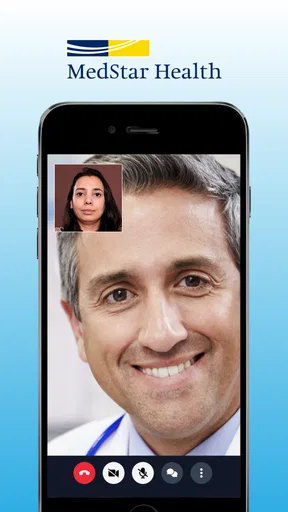
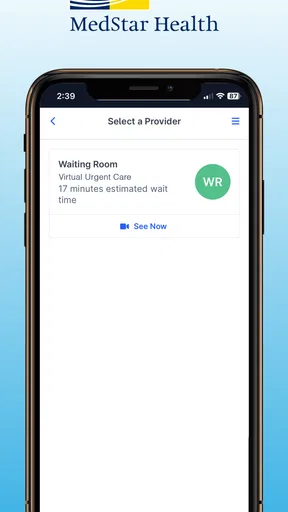
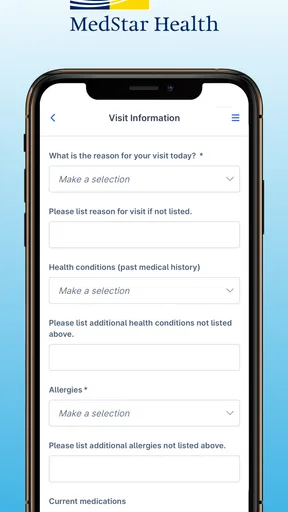

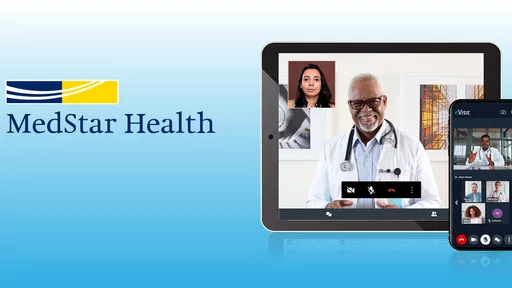
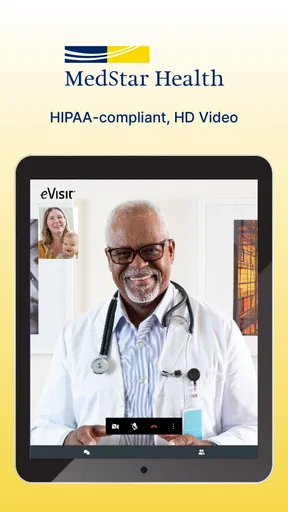
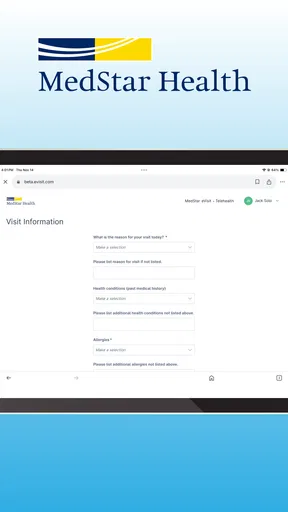
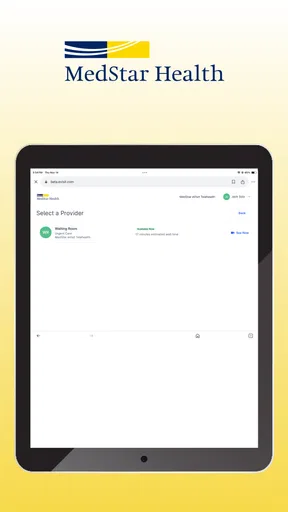
Our Review of MedStar eVisit – Telehealth
 Analysis by Appyee
When I need medical advice but do not want to spend hours arranging an in-person visit, a telehealth app can be a useful first step. MedStar eVisit – Telehealth is built around that simple idea: install the app, create an account, and connect with a provider online for virtual urgent care. I found the experience most useful for problems that feel important enough to discuss with a clinician but not so severe that they obviously require an emergency department.
This is a free medical app from MedStar Health, available to users rated Everyone. It has been around since July 31, 2015, and its current version is 16.1.0. With over one hundred thousand installs and an average rating of 3.9 from roughly nine hundred ratings, it has a real user base, although the score also suggests that the experience is not equally smooth for everyone.
Where the experience usually gets stuck
The first thing I would tell a new user is not to treat this like a general health-information app. Its purpose is to help you reach a provider through a virtual urgent-care visit. That means the important path is account access, visit setup, and communication. If you open it expecting a library of articles, symptom tracking, or a broad personal health dashboard, you may feel that it is narrower than expected.
Account creation is often the point where patience matters. A telehealth visit needs enough information to identify you and prepare the consultation, so rushing through the opening screens can create problems later. I recommend using your legal name and contact details consistently, checking every field before moving on, and keeping any relevant medical information nearby. Even when the app itself is working correctly, incomplete or inconsistent details can make the process feel stalled.
Another common source of confusion is assuming that “online” means instant in exactly the same way as a live chat with a retailer. A virtual urgent-care service still depends on provider availability, the information you enter, and the quality of your connection. If the next step does not appear immediately, I would first reread the screen rather than repeatedly tapping buttons. Duplicate attempts can make it harder to tell which session is active.
The visit itself can also feel less straightforward if you start it in a noisy place or while moving between networks. Telehealth is more demanding than ordinary browsing because the conversation depends on dependable audio and video communication. Before beginning, I would choose a quiet room, keep the phone steady, and make sure the battery is not close to empty. These small preparations reduce the chance of turning a short consultation into a technical troubleshooting session.
The most important practical distinction is this: a virtual urgent-care visit is convenient, but it is not a replacement for emergency care. Severe breathing trouble, major injuries, signs of a stroke, serious allergic reactions, chest pain, or any rapidly worsening condition should be handled through appropriate emergency services instead of waiting for an app-based consultation. The app is better suited to a non-emergency concern that can reasonably be discussed remotely.
What I would prepare before opening it
I would write down the main reason for the visit in one sentence, then add when the problem began and whether it is getting better, worse, or staying the same. This prevents the conversation from becoming a scattered list of symptoms. I would also note current medicines, allergies, recent changes in health, and any temperature or home measurement that may help the provider understand the situation.
A useful but easy-to-miss habit is to keep the phone at eye level rather than holding it in your lap. The provider can communicate more clearly when the camera is stable and your face is visible. Good lighting also matters. Sitting with a bright window directly behind you can leave your face dark, even though the phone camera is functioning normally.
Setup checks that save time
Because MedStar eVisit is a medical service rather than a casual messaging tool, I would complete the setup when I am calm rather than waiting until I feel unwell. Install the app ahead of time, open it once, and make sure you can reach the sign-in or registration stage. That simple rehearsal can reveal an account issue before you are trying to arrange care.
The app requires Android 5.0 or later, so an older Android phone may be the first limitation to check. On a compatible device, I would still keep the operating system and the app reasonably current. The current release is 16.1.0, and updating can be worthwhile when an earlier installation behaves strangely. I would use the official app store on the device rather than downloading an unofficial package, especially for a medical application.
If the app opens but a page refuses to load, I would begin with ordinary checks: confirm that other apps can reach the internet, switch between Wi-Fi and mobile data if both are available, and close the app completely before reopening it. I would avoid changing several settings at once. Testing one adjustment at a time makes it easier to identify whether the issue is the connection, the device, or the service itself.
For a planned visit, I would also check the phone’s sound level and make sure the device is not in a mode that silences calls or notifications. I would not assume that a black screen or silent audio automatically means the provider is unavailable. A muted phone, blocked camera access, unstable signal, or an accidental switch to another app can create the same impression.
Privacy is another setup consideration. I would use a private room and avoid discussing symptoms where other people can hear. If someone else needs to help with the phone, I would keep that person informed about what is being shared. The app makes remote care possible, but the surrounding environment still affects how comfortable and confidential the appointment feels.
One practical trade-off is that the convenience of telehealth depends on having a suitable device at the moment you need it. A phone with a weak battery, a damaged microphone, or unreliable connectivity can make an in-person clinic a better choice even when the medical concern itself is appropriate for virtual care. I would judge the technology and the symptom together, not separately.
Recovering when a visit does not go smoothly
If the app closes during setup, I would reopen it and check whether the visit or registration step was saved before starting over. The safest approach is to look for the existing state rather than immediately creating a second account or submitting the same information again. Repetition can produce confusion, especially when the original attempt is still processing.
If the screen appears frozen, I would wait briefly, note the last action I completed, and then restart the app. If that does not help, I would test the connection and restart the phone. These are basic steps, but they are useful because they separate a temporary device problem from a larger access problem without risking the health information already entered.
For audio or video trouble, I would first check whether the problem affects only the visit. Playing a short sound through the phone can help identify a speaker issue, while recording a brief voice memo can indicate whether the microphone is working. I would also move to a location with a stronger signal and stop other activities that may be using the connection. If the provider can hear me but cannot see me, or the reverse, that points toward a device or access setting rather than a medical scheduling problem.
When a connection drops during a consultation, I would avoid immediately assuming that the visit has been cancelled. I would reopen the app, look for the active visit, and follow the available return path. If the session cannot be recovered, I would record the approximate point at which it ended and the information already discussed. That gives me a clear explanation if I need to try again or contact support through the service.
A less obvious tip is to avoid switching repeatedly between Wi-Fi networks while a visit is active. A phone may cling to a weak network instead of moving cleanly to mobile data, causing brief interruptions that feel random. Staying in one location with one reliable connection is usually more sensible than walking around searching for a stronger signal during the consultation.
I would also avoid uninstalling the app as a first response. Removing it may erase local session context and adds another variable to the problem. Reopening, checking connectivity, restarting the device, and confirming the account state are gentler recovery steps. Reinstallation is something I would consider only after those simpler checks fail and only when I am confident I can sign in again.
When the app is not the cause
Not every disappointing telehealth experience is a software failure. A provider may need information that cannot be assessed well through a phone, or the symptoms may require a physical examination, testing, imaging, or treatment in person. In those situations, a smooth app cannot change the limits of remote care. The right outcome may be a recommendation to visit a clinic, not a longer attempt to force the virtual appointment to solve everything.
The same applies to symptoms that change quickly. If a mild concern becomes severe while waiting, I would stop focusing on the app and reassess the medical situation. Virtual urgent care is most helpful when the person can safely remain at home while communicating with a provider. It is not a reason to delay urgent assistance.
There is also a difference between convenience and continuity. Someone who already has an established relationship with a primary-care clinician may prefer that clinician for an ongoing condition, medication management, or a complex history. The app makes sense when speed and remote access matter more than seeing the same professional who knows the full background.
Compared with searching symptoms on the web, MedStar eVisit offers a direct route to professional conversation rather than leaving me to interpret a long list of possible conditions. Compared with a standard in-person urgent-care center, it can remove travel and waiting-room friction. The compromise is that the provider cannot examine me physically through the screen, and the quality of the visit depends more heavily on my phone, connection, and ability to describe what is happening.
Compared with a regular phone call to a clinic, the app gives the encounter a more structured digital starting point, but it may require more preparation from the patient. A phone call can sometimes be simpler for a person who has limited comfort with apps. I would choose MedStar eVisit when I value remote access and can manage the setup; I would choose a conventional call or in-person visit when the technology itself is likely to become the main obstacle.
Who will get the most from it
I think the app is a good fit for an adult who wants a practical way to seek virtual urgent-care guidance from home, has a compatible Android device, and can explain a non-emergency problem clearly. It may also suit a caregiver helping someone else, provided that person can organize the account information, create a quiet setting, and stay available during the visit.
A realistic example would be waking up with a new but manageable illness on a day when traveling to a clinic is difficult. I would prepare a short symptom timeline, check my connection, sign in, and keep any relevant medicine information nearby. If the provider decides that the concern needs in-person attention, the online visit can still be useful as an initial conversation rather than a failed appointment.
I would be more cautious about recommending it to someone with an unstable connection, an older unsupported phone, or a serious condition that clearly needs hands-on assessment. It is also not my first choice for a long-term medical issue where continuity, records, and a detailed physical evaluation are central. In those cases, a primary-care office or specialist may offer a more complete path.
The free price makes trying the service less of a financial commitment, but free does not mean frictionless. The real cost can be time spent preparing, reconnecting, or switching to another form of care if the virtual route is unsuitable. I would install it before an urgent need, not during the most stressful moment, and I would keep a backup plan for reaching local medical services.
My practical verdict
MedStar eVisit – Telehealth is a focused medical app that makes the most sense when I need virtual urgent-care access and my situation is appropriate for remote discussion. Its strongest quality is the directness of the idea: sign up, connect online, and speak with a provider without beginning at a waiting room. That can be genuinely valuable for a manageable concern, limited mobility, a busy day, or a situation where leaving home is inconvenient.
My reservations are mainly practical. Account setup, network quality, device compatibility, and the limits of remote examination all matter. A disappointing session may come from the phone or the medical situation rather than the software, so I would troubleshoot calmly but would never let troubleshooting delay emergency help.
With a 3.9 average from around nine hundred ratings, the app appears useful to many people while leaving room for uneven experiences. MedStar Health is the developer, and the app’s long availability suggests that it is intended as an established access point rather than a novelty. I would recommend it to someone who understands what virtual urgent care can and cannot do, prepares before starting, and keeps in-person care as the fallback when the symptoms or technology call for it.
My bottom line is simple: install it in advance, test the sign-in process, prepare your symptom details, and use it for the right level of concern. If those conditions fit, this free app can be a convenient bridge between searching for answers alone and traveling to a clinic. If they do not, choosing a phone call, an in-person provider, or emergency services is the more responsible decision.
Verdict
Strengths of MedStar eVisit – Telehealth
- Connects you with licensed MedStar clinicians from home.
- Useful for non-emergency care when visiting a clinic is inconvenient.
- Video visits can reduce travel time and waiting-room exposure.
- May provide prescriptions or care advice when clinically appropriate.
- Designed for MedStar patients and integrates with its care network.
Limitations of MedStar eVisit – Telehealth
- Not suitable for emergencies or conditions needing hands-on examination.
- Availability may depend on your location, insurance, and provider hours.
- A stable internet connection and compatible device are required.
- Some symptoms may still require an in-person follow-up visit.
- Consultation fees or copays may vary by plan and visit type.
Similar Picks in This Category
View All
WebMD: Symptom Checker
WebMD, LLC4.1

Microphone Amplifier
DOSA Apps4.2

Anatomy Learning - 3D Anatomy
3D Medical OU4.5

Period Tracker and Calendar
SimpleInnovation4.9

GoodRx: Prescription Coupons
GoodRx4.8

CVS Health
CVS Pharmacy4.5
Frequently Asked Questions
What is MedStar eVisit – Telehealth, and how does it work?
MedStar eVisit – Telehealth is a virtual healthcare service that allows eligible users to connect with participating medical professionals through a smartphone or tablet. After signing in, you can usually describe your symptoms, provide relevant health information, and begin a video or online consultation when providers are available. The clinician may offer medical guidance, recommend treatment, or advise you to seek in-person care.
Do I need to be a MedStar patient or have insurance to use the app?
Access to MedStar eVisit may depend on your location, MedStar service eligibility, employer benefits, health plan, or participation in the program. Some features may require an existing MedStar account, while others can depend on your insurance coverage or payment arrangements. Before downloading, check the app’s current eligibility requirements and confirm whether your insurance plan supports virtual visits.
What types of health problems can be treated through MedStar eVisit?
The service is generally intended for non-emergency medical concerns that can be evaluated remotely, such as common cold symptoms, allergies, minor infections, skin complaints, or routine follow-up questions. Availability can vary by provider and visit type. It is not a replacement for emergency care, physical examinations, procedures, or conditions that require testing, imaging, or immediate hands-on treatment.
How much does a MedStar eVisit appointment cost?
The price of a virtual visit is not necessarily the same for every user. Your cost may depend on your insurance plan, copay, deductible, employer coverage, membership status, or whether you are paying privately. The app may display billing information during scheduling or before the consultation. Review the estimated charge carefully and verify coverage with your insurer if the cost is important.
What equipment and privacy settings are needed for a virtual visit?
You will normally need a compatible Android or iOS device, a stable internet connection, and permission for the app to use your camera and microphone. A quiet, well-lit location can make the consultation easier. Because you may discuss sensitive health information, use a private network and avoid public spaces when possible. Keep the app updated and review its privacy policy before sharing personal data.
